How to Scan Documents With Your Phone
A smartphone can turn a paper document into a digital file in seconds.
The difficult part is not taking the picture.
The difficult part is making sure the document remains useful afterward.
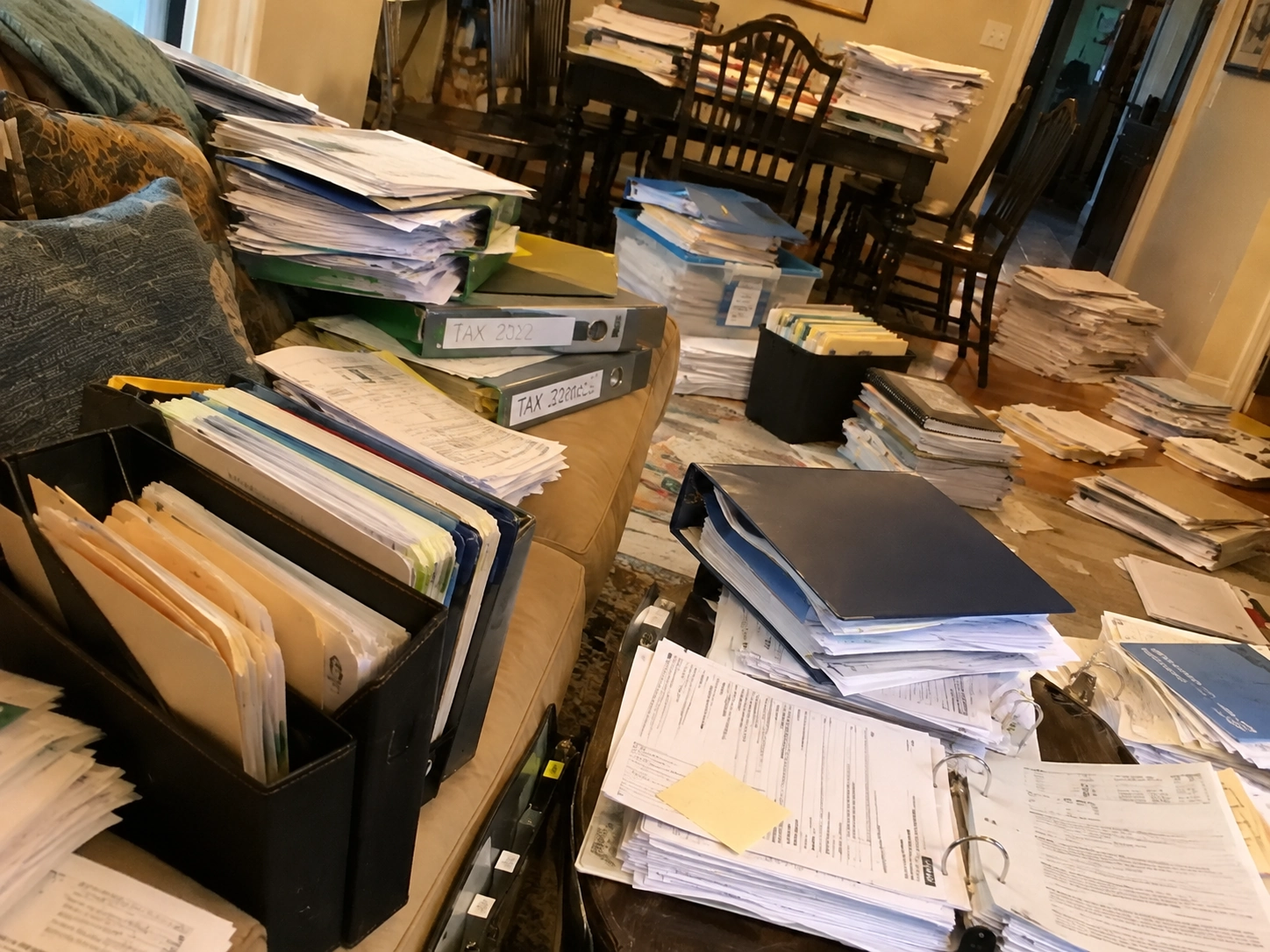
Many people scan or photograph documents and then leave them scattered in their gallery, downloads, or random folders. Months later, the physical paper may be gone, but finding the digital copy becomes another problem.
A better approach combines scanning with organization.
Choose a Good Surface
Start with a flat surface.
A desk or table usually works well.
Ideally, the background should contrast with the paper so the edges are easy to distinguish.
Flatten folded documents where possible.
Remove unnecessary objects from around the page.
A clean capture environment helps produce a cleaner digital document.
Use Even Lighting
Lighting has a major impact on readability.
Avoid strong directional light that creates dark shadows across the page.
Be careful with glossy paper because overhead lights may create reflections.
Natural daylight can work well, but avoid placing the document where half the page is brightly illuminated and the other half is dark.
You are not trying to create an artistic photograph.
You are trying to preserve readable information.
Position the Phone Correctly
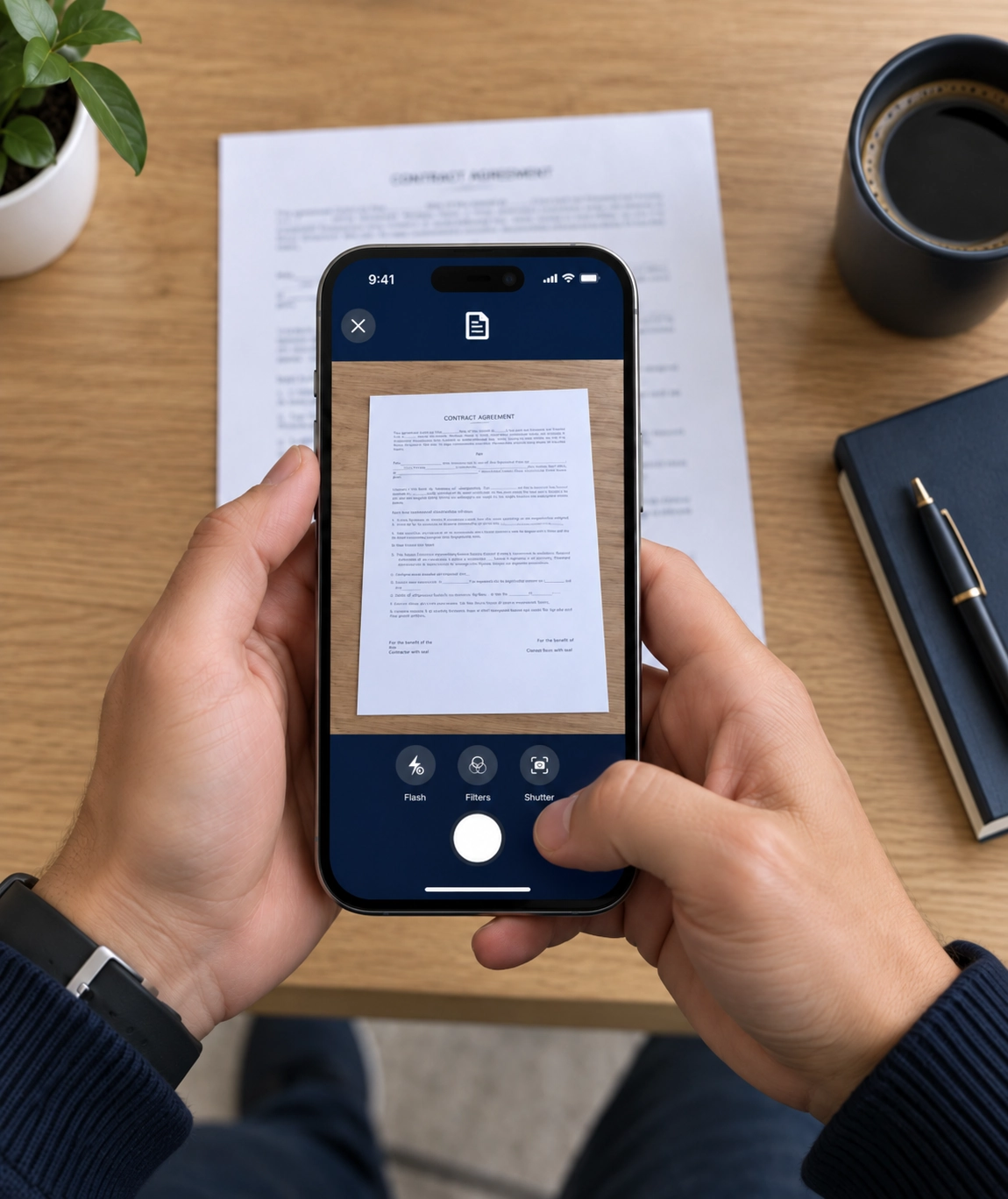
Hold the phone above the document rather than at a steep angle.
Keeping the camera as parallel as possible to the page reduces perspective distortion.
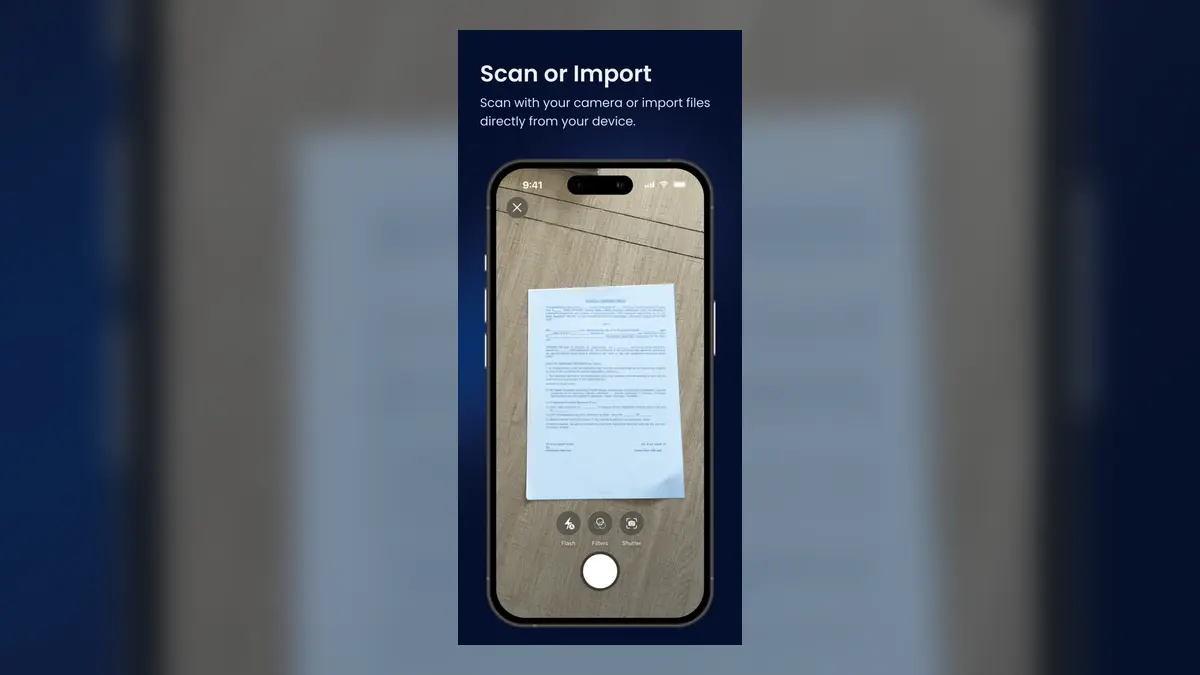
Many scanning applications provide guides to help frame the page.
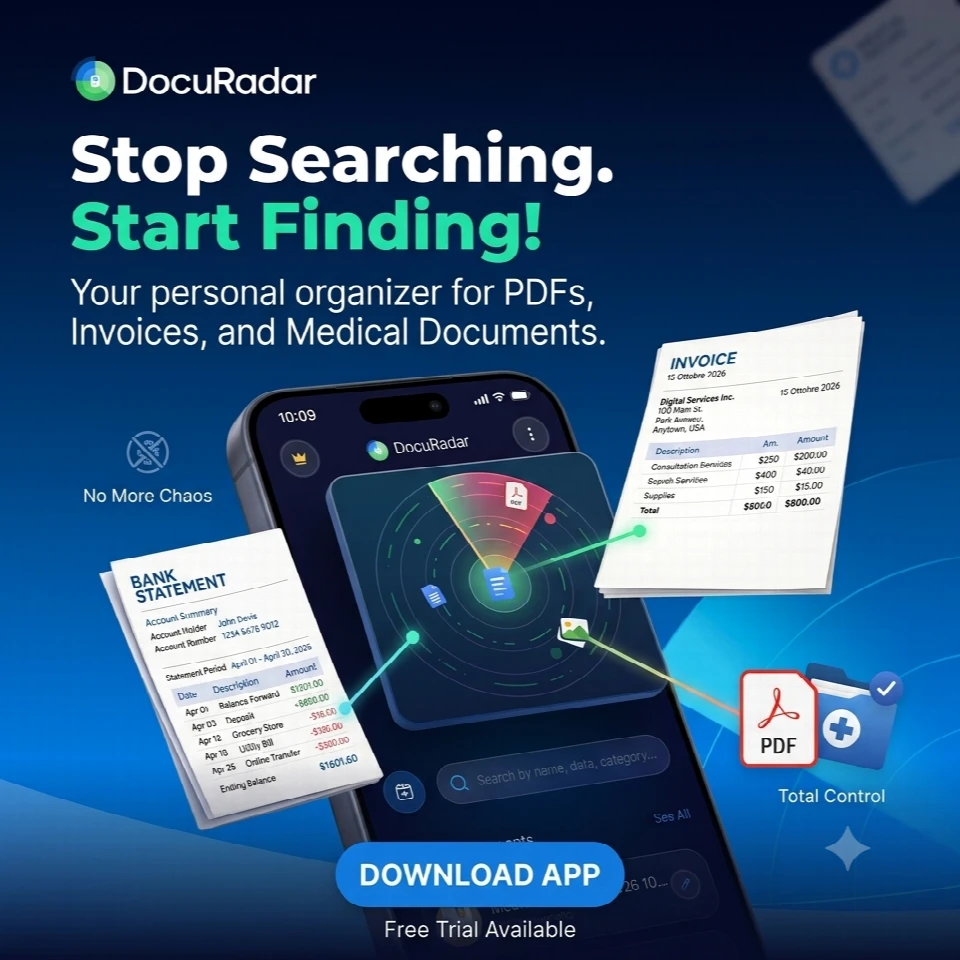
DocuRadar® is designed to let the user place the document on a surface and use the phone camera to capture it, with image-processing technology helping improve imperfect scans where necessary.
Take an extra second to frame the page properly.
That second can save you from rescanning the document later.


Check the Entire Page
Before saving, inspect the result.
Can you see every corner?
Is any text cut off?
Can you read small numbers?
Are signatures visible?
Is there glare over an important section?
If a document contains sensitive or important information, do not assume the scan succeeded simply because the application accepted the image.
Visual verification matters.
Scan Both Sides When Necessary
Some documents contain important information on both sides.
Identification cards, licences, membership cards, certificates, receipts, or official documents may require front-and-back capture.
Treat both sides as one logical record.
Do not save the front today and leave the back buried somewhere else.
Your future self should be able to open the document and immediately see everything associated with it.
Keep Multi-Page Documents Together
A five-page contract should not become five unrelated images.
Scan the pages in sequence and save them as one document whenever the application supports multi-page scanning.
This preserves context and makes sharing easier.
Page order also matters.
Before saving, quickly check that pages appear in the correct sequence.
The goal is to reproduce the logical structure of the original paper document digitally.
Do Not Forget Existing Photos
Your digital archive probably starts before the day you install a document-management app.
You may already have photographs of important papers in your gallery.
Do not ignore them.
Review existing images and import useful ones into your archive.
This allows you to organize documents you captured months or years earlier without having to find the original paper again.
DocuRadar® supports the idea of importing both existing digital documents and images already saved on the device.
Give the Scan a Useful Name
The default result of a scan may be something generic.
That is fine technically, but poor for long-term organization.
Give the file a name that will make sense later.
Consider including the document type, organization, subject, or year.
For example:
Dental Invoice Dr Anderson 2026
Home Insurance Policy 2026
Mechanic Brake Service Invoice
Passport Copy
The exact format matters less than clarity.
DocuRadar® is designed to propose meaningful names based on the document context, reducing this manual step.
Add the Right Category
Once the document is scanned, ask where it belongs.
A medical report belongs with health information.
A bank document belongs with finance.
A repair invoice may belong with home or vehicle documentation.
Categorization creates a second way to find documents later.
This is particularly useful when you cannot remember the exact words required for search.
DocuRadar’s document-processing workflow is designed to propose appropriate categories after import or scanning.
Make Scanning Part of Everyday Life
Digitization becomes useful when it becomes habitual.
Receive a warranty receipt?
Scan it.
Receive an important medical report?
Scan it.
Sign a document you may need again?
Save the digital copy.
Receive maintenance paperwork for your home?
Archive it.
The best time to organize a document is when you still know exactly what it is and why it matters.
Decide Which Paper Originals to Keep
Creating a digital copy does not automatically mean every original sheet should be discarded.
Some originals may still be important to retain for practical, contractual, administrative, or personal reasons.
The digital archive should first solve accessibility.
It gives you an easy way to view, search, organize, and share information.
Any decision about disposing of the original should be made separately according to the nature of the document and your own requirements.
Protect Sensitive Scans
A phone full of passport images, medical records, financial information, and contracts deserves protection.
Use device locking.
Where available, use additional app security such as biometric authentication or a PIN.
Be deliberate about backup and sharing.
A document becomes easier to use when digitized, but that also means it deserves thoughtful access control.
DocuRadar’s core concept emphasizes local device storage and offline use, with an optional backup approach for users who choose it.
Capture Receipts Early
Receipts deserve special attention because they are easy to lose and often difficult to organize.
If a purchase is important enough that you might need the receipt again, scanning it immediately creates a useful record.
Do not wait until the day you need a warranty claim.
Scan first.
Name it.
Categorize it.
Then forget about it until you actually need it.
That is what a good archive should allow you to do.
Look for Future Dates
A scanned document may contain more than historical information.
Perhaps it contains a renewal date.
An expiration.
An appointment.
A maintenance recommendation.
A future payment.
When saving important documents, pay attention to these dates.
DocuRadar® is designed to detect potentially relevant dates and let users choose whether to create reminders.
This turns scanning into something more useful than digital photocopying.
Build a Searchable Archive
The final objective is not “I scanned 200 pages.”
It is:
“I can find any important document when I need it.”
That distinction matters.
A folder containing hundreds of poorly named scans is only marginally better than a physical box containing hundreds of sheets of paper.
A useful archive connects scanning with naming, categorization, search, privacy, and reminders.
That is the difference between digitizing documents and actually managing them.
Your smartphone already travels with you almost everywhere.
Used properly, it can become the entry point to an organized document archive that is far easier to access than shelves full of paperwork.
A smartphone can turn a paper document into a digital file in seconds.
The difficult part is not taking the picture.
The difficult part is making sure the document remains useful afterward.
Many people scan or photograph documents and then leave them scattered in their gallery, downloads, or random folders. Months later, the physical paper may be gone, but finding the digital copy becomes another problem.
A better approach combines scanning with organization.
Use a flat, clean surface such as a desk or table.
Ideally, the background should contrast with the color of the paper so that the document edges are easy to detect. Flatten folded or creased pages where possible and remove unnecessary objects from around the document.
A clean setup helps produce a clearer scan.
Use bright, even lighting.
Avoid strong directional light that creates shadows across the page. Glossy documents may also reflect overhead lights, so check for glare before taking the scan.
Natural daylight often works well, provided the entire page is evenly illuminated.
The goal is not to create a perfect photograph, but to preserve all the information clearly and legibly.
Hold your phone directly above the document and keep the camera as parallel to the page as possible.
Scanning from a steep angle can create perspective distortion and make the document harder to read.
Many scanning apps provide guides to help you align the page correctly. DocuRadar also uses image-processing technology to help improve imperfect captures where necessary.
Always check the scan before saving it.
Make sure:
all four corners are visible;
no text has been cut off;
small numbers and details are readable;
signatures are clearly visible;
there are no shadows or reflections covering important information.
For important or sensitive documents, do not assume a scan is correct simply because the app accepted the image. A quick visual check can prevent problems later.
Yes, whenever both sides contain relevant information.
Documents such as ID cards, driving licences, membership cards, certificates and official paperwork may contain important details on both sides.
Keep the front and back together as part of the same digital record so that all related information is easy to access.
Scan all pages in the correct order and save them as a single document whenever possible.
For example, a five-page contract should ideally be stored as one five-page file rather than five separate images.
Before saving, check the page order to make sure the digital version matches the structure of the original document.
Yes.
Your digital archive does not have to start from the day you begin using a document-management app. You may already have useful photographs of receipts, contracts, certificates or other paperwork stored in your phone gallery.
Review your existing images and import the important ones into your archive.
DocuRadar is designed to support both newly scanned documents and existing files or images already stored on your device.
Use clear, descriptive names that will still make sense months or years later.
A useful filename may include the document type, organization, subject or year.
Examples include:
Dental Invoice – Dr Anderson – 2026
Home Insurance Policy – 2026
Mechanic – Brake Service Invoice
Passport Copy
The exact format is less important than making the document easy to identify.
DocuRadar is designed to suggest meaningful document names based on the content, helping reduce manual organization.
Categories give you another way to find documents later, especially when you cannot remember the exact filename.
For example:
medical reports can be stored under Health;
bank statements under Finance;
car repair invoices under Vehicle;
home maintenance documents under Home.
DocuRadar's document-processing workflow can suggest relevant categories after a document is scanned or imported.
The best time is usually as soon as you receive them.
For example, scan important receipts, medical reports, signed documents, warranty paperwork and maintenance records when they are still fresh in your mind.
Organizing a document immediately is easier because you already know what it is, why it matters and where it belongs.
Not necessarily.
Creating a digital copy does not automatically mean the original paper document should be discarded.
Some original documents may still need to be kept for legal, contractual, administrative or personal reasons.
A digital archive is primarily useful for making documents easier to access, search, organize and share. Whether you keep or dispose of the original should be decided separately based on the type of document and your requirements.
Documents such as passports, medical records, financial information and contracts may contain sensitive personal information.
Protect them by using your phone's screen lock and, where available, additional app security such as biometric authentication or a PIN.
You should also consider carefully how documents are backed up and shared.
DocuRadar is designed around local device storage and offline use, with optional backup choices for users who want them.
Yes, especially for important purchases.
Receipts are easy to lose and may fade or become unreadable over time. Scanning them shortly after a purchase creates a digital record that can be useful for warranties, returns, expenses or future reference.
A simple workflow is:
Scan it, name it, categorize it and store it.
Then you can forget about it until you actually need it.
Yes.
Documents often contain future dates such as:
renewals;
expiration dates;
appointments;
maintenance deadlines;
payment dates.
When scanning an important document, check whether it contains a date you may need to remember.
DocuRadar is designed to identify potentially relevant dates and allow users to choose whether to create reminders.
A good archive is not simply a large collection of scanned pages.
The real goal is to be able to find the right document quickly when you need it.
An effective digital archive combines:
clear scans;
meaningful names;
logical categories;
reliable search;
privacy and security;
useful reminders.
A folder containing hundreds of poorly named scans can become almost as difficult to manage as a box full of paper.
The difference between simply digitizing documents and truly managing them is how easily you can find and use the information later.
Your smartphone is usually with you, making it a convenient starting point for building an organized digital archive.
Used effectively, it can help you capture, organize, search and access important documents without relying on shelves, folders or boxes full of paperwork.
With tools such as DocuRadar, scanning becomes part of a broader document-management workflow rather than simply taking photographs of paper.